Looking for help with HMIS?
This article will discuss the Sex data element that has been introduced as a requirement by HUD. Topics include timelines, requirements, and how to add a response for both new and existing clients.
About the New Element
The Sex data element was introduced by the Department of Housing and Urban Development (HUD) at the start of Fiscal Year 2025 (10/01/25). Its introduction coincides with the retirement of Gender as a UDE (Universal Data Element). HAWNY still collects Gender as a Local Data Element, but Sex is now required for most projects as a PSDE (Program Specific Data Element).
It will only need to be entered one time, either at client record creation or within the client profile if the client already exists in HMIS.
We expect all clients to have a response to the Sex data element starting 10/01/2026, the beginning of Fiscal Year 2026, if the client has a project entry date on or after 10/01/2025.
All new clients, or clients with a project start date on or before 10/01/2025 must have a response for the Sex data element by 10/01/2026. Data from the Gender field will not automatically populate to the Sex field.
Note: All new clients, or clients with a project start date on or before 10/01/2025 must have a response for the Sex data field by 10/01/2026. Data from the Gender field will not automatically populate to the Sex field.
How to Add Response to Existing Clients
As previously mentioned, existing clients with a project entry date on or before 10/01/2025 will need a response to the Sex data element as their response to the Gender data element will not automatically transfer and fill this field. To enter a response for the Sex data element, follow the steps outlined below. This will only need to be done once per client.
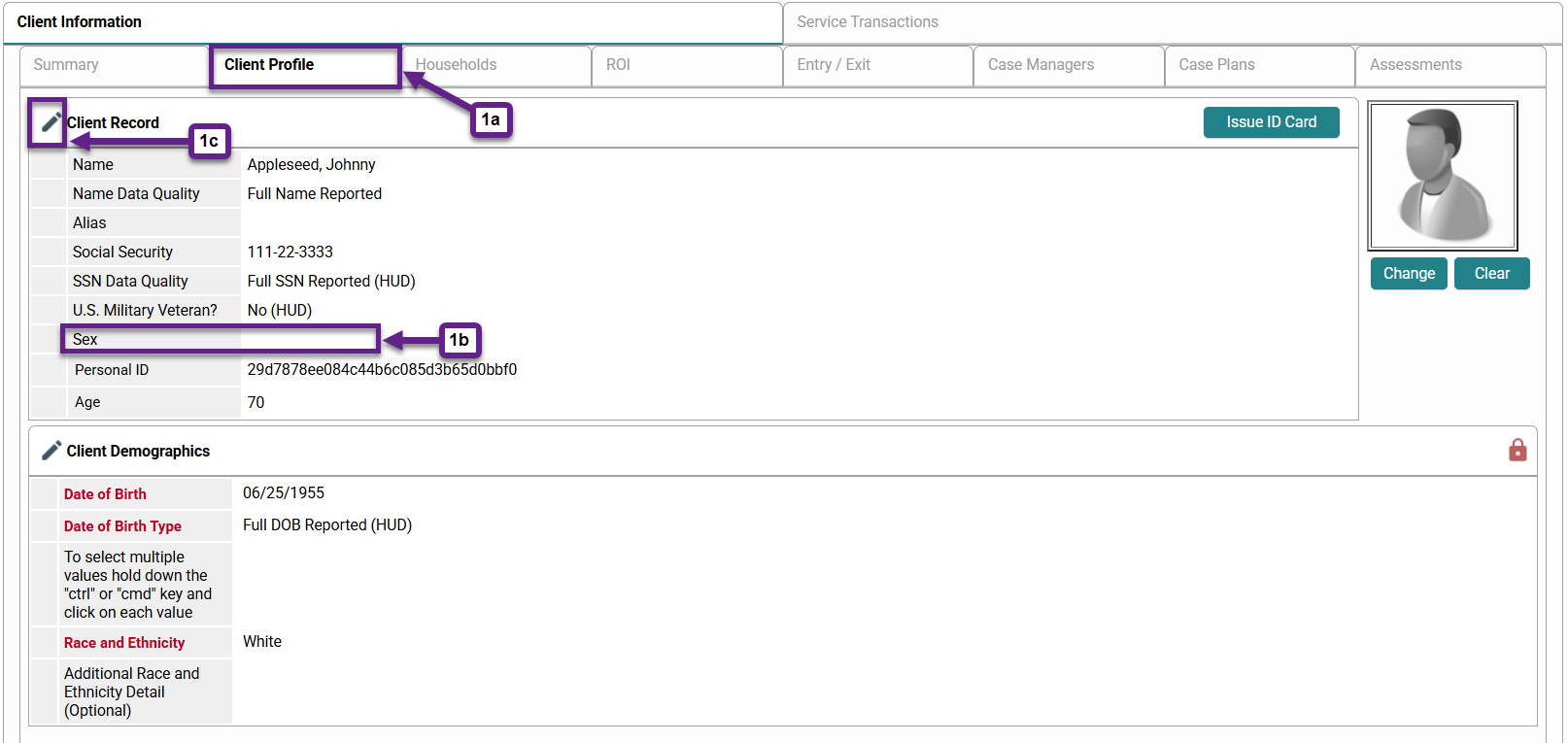
Step 1 – Navigate to the Client Profile within the Client Record.
Search for the client and click the Client Profile tab (1a). This is where the response to the Sex data element is stored.
You can see that there is currently no response for the Sex data element since the response area is blank (1b).
To input a response, click the pencil icon next to where it says Client Record (1c).
Step 2 – Input a response.
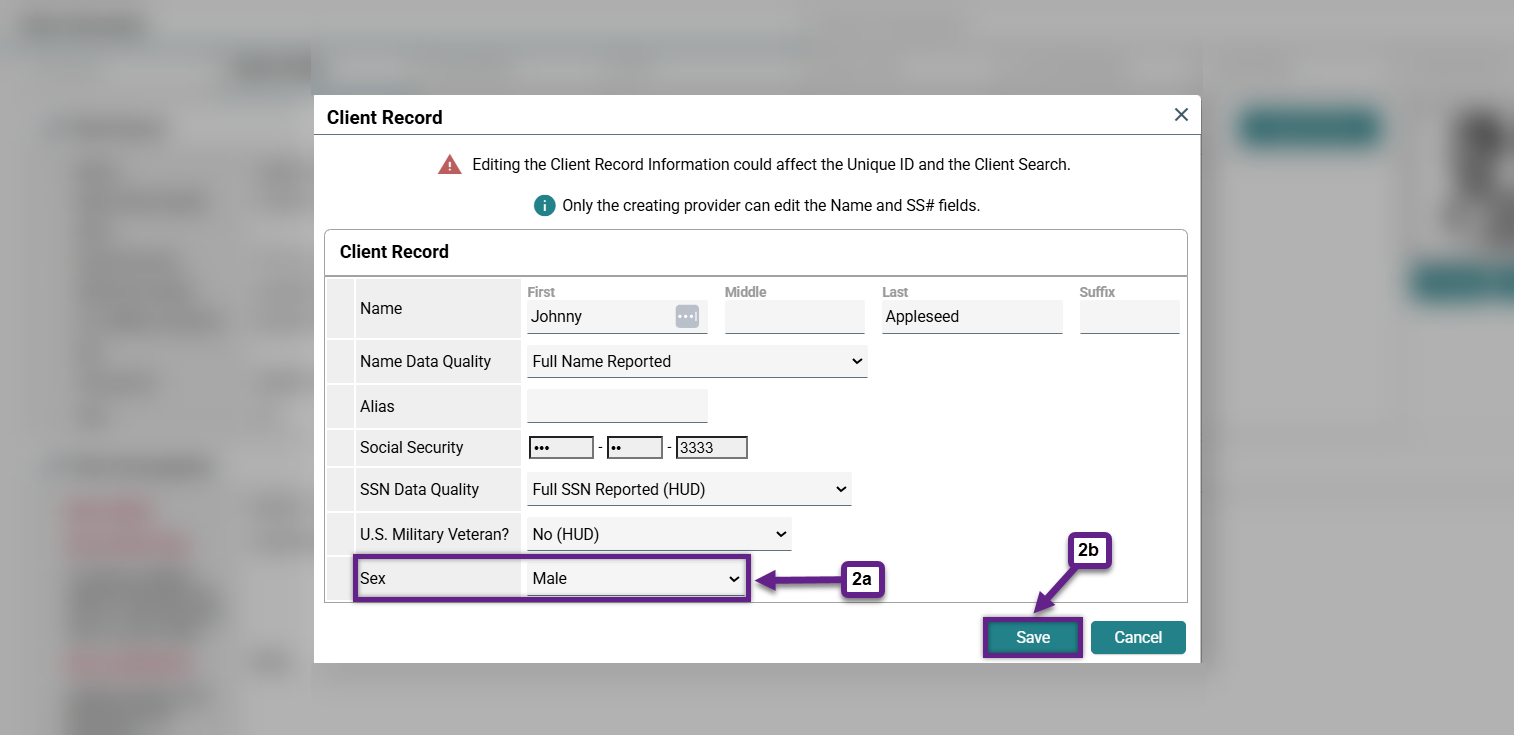
A window should pop-up where you can select a response for Sex from a drop-down menu (2a). Once a response is selected, click the Save button (2b) at the bottom of the window to save the response and close the pop-up.
Step 3 – Viewing the response.
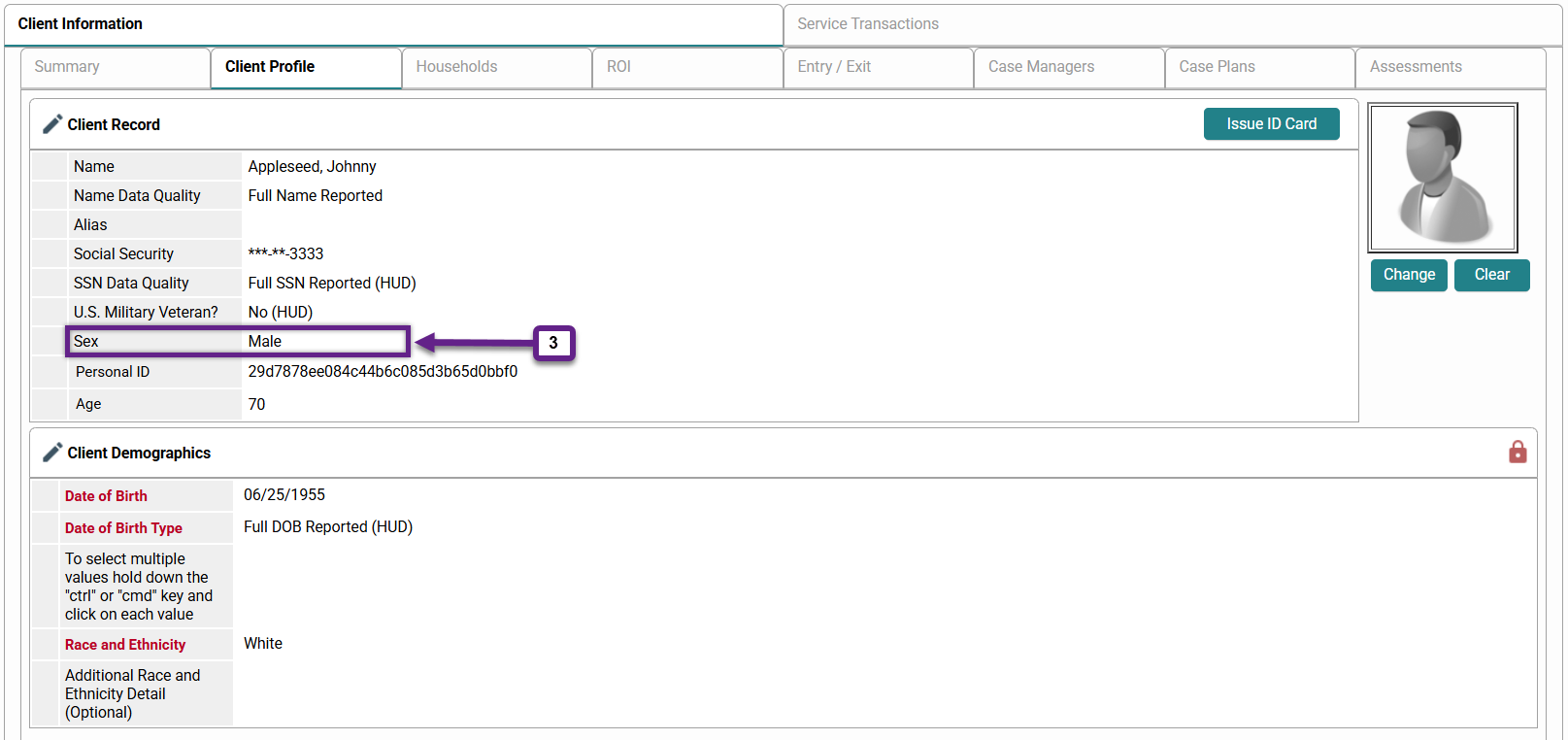
You should now be able to see the response listed within the Client Profile (3).
How to Add Response for New Clients
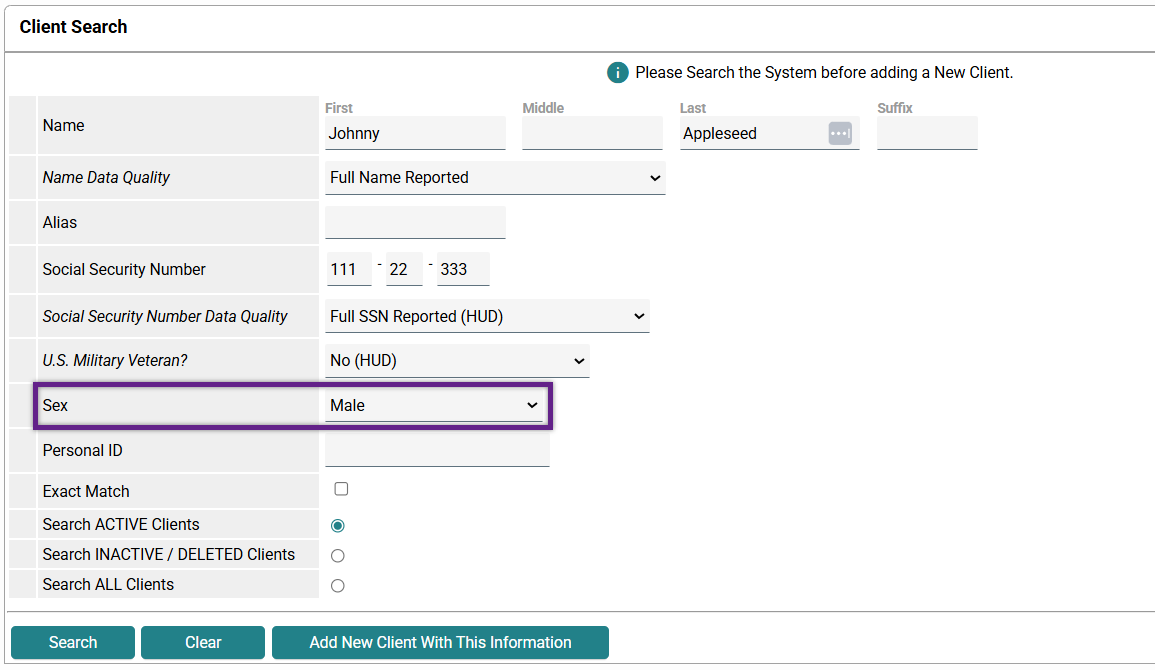
Every new client added to the system should have a response for the Sex data element. This is done at client record creation.
To include a response to the Sex data element, select a response within the Client Search screen when creating a new client as you would for any of the other data fields like Name or U.S. Military Veteran. This will only need to be done once per client.
Related Articles
Related Documents
The HUD Exchange website expands upon Data Standards in the HMIS Data Dictionary and the HMIS Data Standards Manual. Search “Sex” within these documents for more information on the Sex data element.
Frequently Asked Questions
What is the difference between the Gender data element and the Sex data element? Why can’t the response for Gender be copied over to the response for Sex?
HUD and Wellsky (our HMIS vendor) have prohibited the automatic transfer of the response for the Gender data element to the response for the Sex data element since HUD defines Gender and Sex differently.
Gender, as previously described by HUD in older versions of the Data Standards Manual, was meant to: “indicate client’s self-identification with one or more of the gender categories”.
Under the new definition outlined in an Executive Order, two sexes are described in the 2026 Data Standards:
Female – “A person of the sex characterized by a reproductive system with the biological function of producing eggs (ova)”.
Male – “A person of the sex characterized by a reproductive system with the biological function of producing sperm”.
Both Gender and Sex fields remain self-reported.
Still having trouble?
If you are still having issues understanding the Sex data element, please contact the HMIS Administration Team at [email protected].